Getting started
This takes about five minutes. You need an Android phone (Android 7 or later) with GPS, which is nearly every phone.
1. Install the app
FindCache is not on Google Play yet, so for now you install the app file directly (this is called sideloading). It is safe, it takes a minute, and you only do it once.
- Download. On your phone, open the download link, or scan the QR code on the FindCache page. The file is findcache.apk (about 30 MB). If your browser warns that this type of file can harm your device, choose Download anyway: it only says that about any app file.
- Open it. When the download finishes, tap Open in the browser, or find findcache.apk in your Files app under Downloads, and tap it.
- Allow your browser (or Files app) to install apps, one time. Android says your phone "isn't allowed to install unknown apps from this source". Tap Settings, switch on Allow from this source, then press Back. On Android 7, open Settings → Security and switch on Unknown sources instead.
- Tap Install. If Google Play Protect says the app is unrecognised or blocked, choose More details, then Install anyway. FindCache is small, free and open source, and it just has not been through Google Play yet.
- Tap Open to start FindCache. You can switch Allow from this source off again afterwards.
Your phone needs Android 7 or later and an ARM processor (64-bit or 32-bit), which covers nearly every Android phone.
Updating: to update, download and open the newer findcache.apk the same way. It installs over the old version and keeps your places.
Moving to Google Play later: when FindCache arrives on Google Play, the Play version will need the sideloaded one removed first, and removing it deletes your places. Before that, use Files → Export to save your places as a file (see Import and export), then import them into the new install.
2. Allow location
When FindCache first needs your position, Android asks for permission. Choose While using the app and, if you are asked, Precise. FindCache only looks at your location while one of its screens is open, and never sends it anywhere.
Bluetooth sharing (see Sharing places) also asks for Nearby devices permission the first time you use it.
3. Save your first place
- Stand where you want to remember, ideally with a clear view of the sky.
- Tap Add place.
- Type a name, for example "Car" or "Picnic spot".
- Tap Use current. FindCache fills in your coordinates and how accurate the fix is.
- Tap Save.
For a better position, tap Average position instead and wait a minute: see Saving places.
4. Find it again
- From the places list, tap the place. The list shows how far away each one is.
- The compass opens. Hold the phone flat and follow the arrow. The outer ring turns so N, E, S and W always point the real way.
- Below the compass you see the distance and an uncertainty radius: how close the phone can honestly tell. Read more in Finding a place.
- When you are close, the middle of the compass turns into a small map of the search area, optionally over a street map or satellite view (see Settings). Look around inside the shaded circle.
- Found it? Tap Mark found.
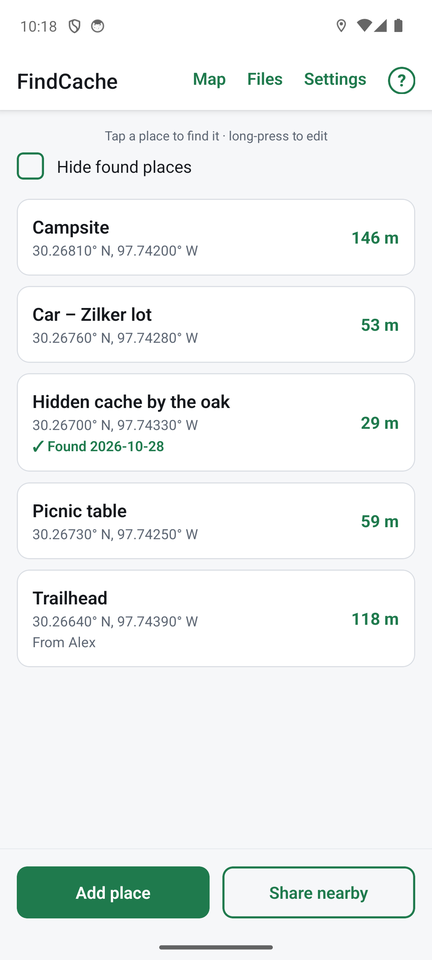
Anywhere in the app, the ? at the top right opens help for that screen.